
Compress Photos & Videos on iPhone — Without Deleting Memories
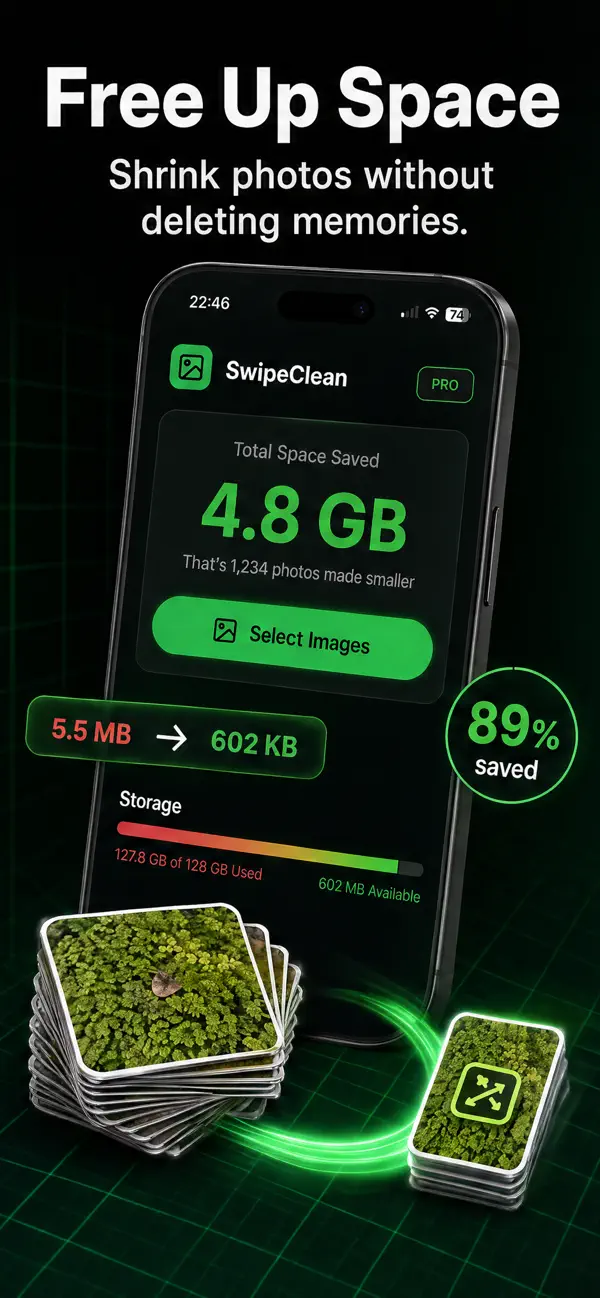
SwipeClean shrinks your photos and videos up to 89% so your storage bar goes green again. Everything is processed on your device — no cloud, no uploads, no quality you would actually miss.

Free on the App Store · Requires iOS 15.1+
Download SwipeClean
FreeiOS 15.1 or laterPhoto & Video · Utilities
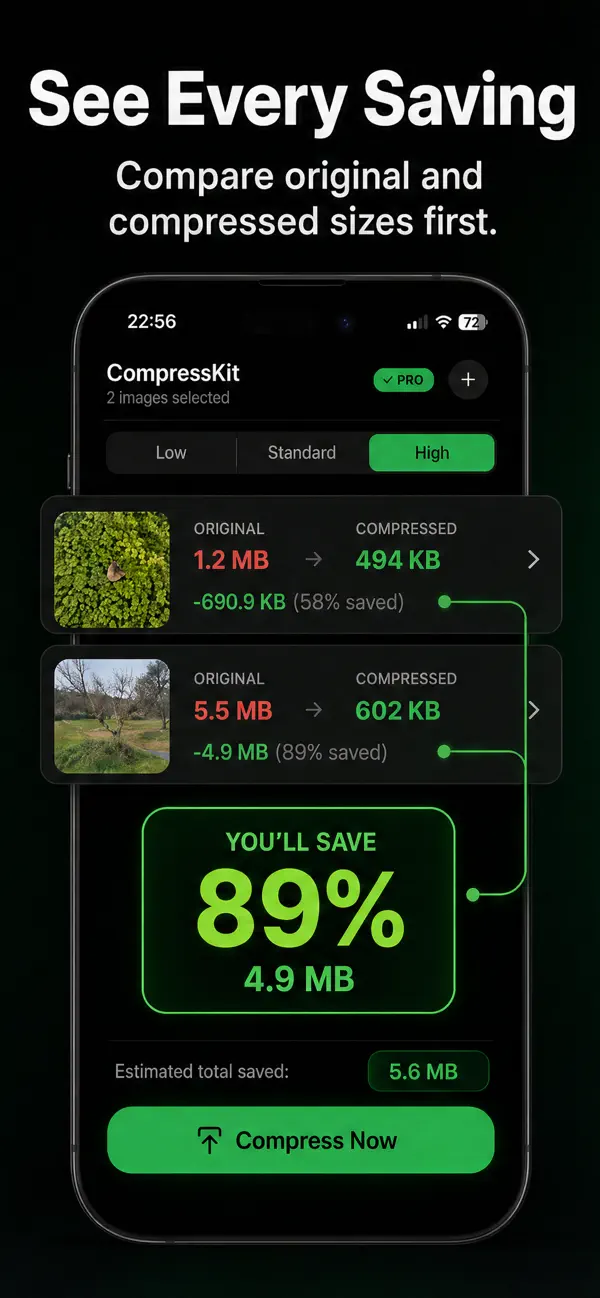
See every saving before you commit
Why SwipeClean beats deleting
A photo and video compressor built for one job: making your storage bar green without making you choose which memories to lose.
Photo compression
Shrink photo file sizes dramatically — typically 60–90% — while keeping the visual quality that makes them worth keeping.
Video compression
Videos are the real storage hogs. Compress them to a fraction of their size and reclaim gigabytes in one session.
See savings before you commit
Every item shows original vs. compressed size and the percentage saved — you decide with the numbers in front of you.
Three quality presets
Low, Standard, and High compression levels let you pick the balance between clarity and space, per batch.
On-device processing
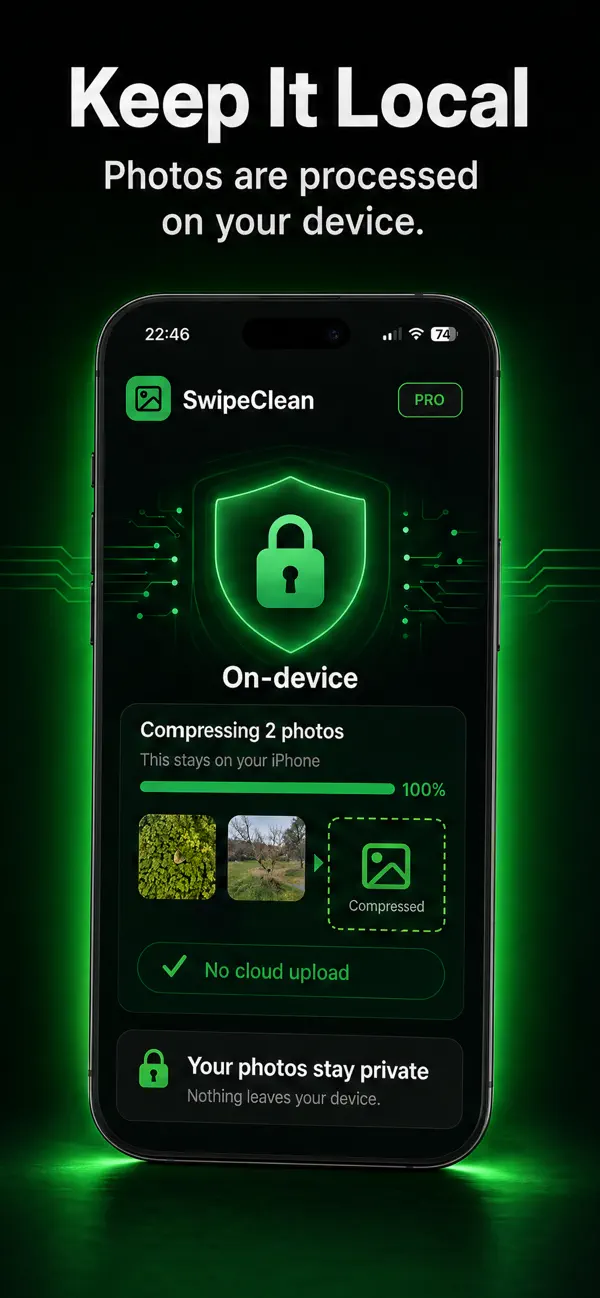
Your photos and videos never leave your iPhone. No cloud upload, no servers, no account.
Batch-friendly workflow
Queue hundreds of items at once and free up storage in one go instead of repeating the same steps.
How SwipeClean frees up your storage
From red storage bar to green in three steps.
Select photos and videos
Pick individual items or whole batches — the app shows each file’s current size up front.
Choose a compression level
Low, Standard, or High. Preview the estimated savings — often 80%+ on camera photos and videos.
Compress and reclaim
SwipeClean processes everything on-device and shows the total space saved. Your storage bar breathes again.
Storage & compression guides
Guides to compressing media and rescuing a full iPhone — with the exact steps in SwipeClean.
How to Compress a Video on iPhone
Two ways to compress a video on iPhone — the built-in trick and the proper way with a compressor app — plus what quality level to pick.
Read the guide →How to Free Up Storage on iPhone (Without Deleting Memories)
Seven steps to free up iPhone storage: find the hogs, compress photos and videos, offload apps, and clear caches — no memories deleted.
Read the guide →How to Reduce Photo File Size on iPhone
Why iPhone photos are so large, how much you can compress without visible quality loss, and the exact steps to shrink them with SwipeClean.
Read the guide →iPhone Storage Full? Here’s What Actually Works
When your iPhone says storage is full: what is really taking the space, what to clear first, and how compression recovers gigabytes without deleting.
Read the guide →Frequently asked questions
How do I compress a video on my iPhone?
Use a compression app: select the video, pick a quality level, and save the smaller version. SwipeClean shows the before/after size first — a multi-gigabyte 4K clip typically shrinks by 70–90% with barely visible quality change on a phone screen. Learn more →
How do I free up storage on my iPhone without deleting photos?
Compress instead of delete: shrinking your camera roll’s file sizes recovers most of the space deletion would, while keeping every memory. Combine it with clearing app caches and offloading unused apps for the full cleanup. Learn more →
What should I do when my iPhone says storage is full?
Triage in order: see what is actually using space in Settings, compress your photos and videos (usually the biggest chunk), offload unused apps, and clear message attachments. Compression alone often recovers several gigabytes in minutes. Learn more →
Can I reduce photo file size without losing quality?
Mostly, yes. Camera photos carry far more data than a screen can show, so 60–80% size reductions are visually near-lossless. SwipeClean lets you compare the original and compressed versions before you commit. Learn more →
Are my photos uploaded anywhere during compression?
No. SwipeClean processes everything locally on your iPhone — no cloud upload, no server, no account. Your photos stay private, and compression even works without an internet connection.
What happens to the original photos after compressing?
You stay in control: compressed copies are saved to your library and you choose whether to keep or delete the originals. Deleted originals sit in the Recently Deleted album for 30 days as a safety net.
How much space can I actually save?
Typical savings run 60–90% per item. A camera roll with years of photos and videos usually gives back several gigabytes — the app tracks your total space saved over time.
Your storage bar doesn’t have to be red
Download SwipeClean free and reclaim gigabytes today — on-device, no cloud, no account.