How to Free Up Storage on iPhone (Without Deleting Memories)
Updated July 7, 2026 · by Oguz Yildiz
To free up storage on an iPhone, find out what is using the space, shrink the biggest category — almost always photos and videos — and then clean up apps and caches. Done in the right order, this recovers gigabytes in under an hour, and none of it requires deleting a single memory. Here is the seven-step sequence.
Step 1: See what is actually eating the space
Settings → General → iPhone Storage. The colored bar tells you where the gigabytes went; for most people Photos and Apps dominate. Everything below follows this breakdown — fix the biggest bar segment first, not the easiest one.
Step 2: Compress your photos and videos
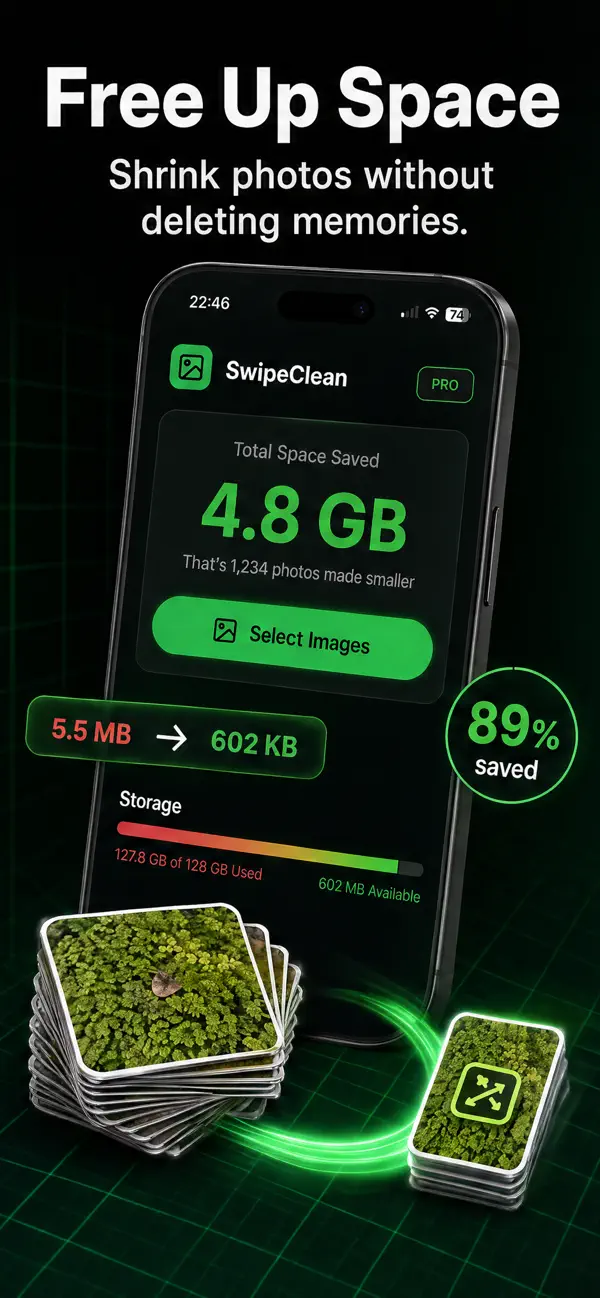
This is the highest-yield step, because camera files carry far more data than any screen displays. Open SwipeClean, select your camera roll in batches, pick a compression level, and reclaim 60–90% of the space per item — the app shows the exact savings before you commit, and everything is processed on-device. A years-old camera roll typically returns several gigabytes. Videos give the biggest single wins; see how to compress a video on iPhone for the details.
Step 3: Offload the apps you don’t use
In the iPhone Storage list, each app shows its size and last-used date. “Offload App” removes the app binary but keeps your data — reinstalling restores it exactly. Sort by size, offload anything untouched for months. Games are the usual multi-gigabyte suspects.
Step 4: Clear the Messages attachment graveyard
Years of group-chat photos and videos live in Messages. Settings → General → iPhone Storage → Messages shows Review Large Attachments — delete freely; the ones worth keeping are usually in your photo library already. Setting Messages to auto-delete after one year prevents the regrowth.
Step 5: Empty Recently Deleted (yes, really)
Deleted photos spend 30 days in Photos → Albums → Recently Deleted, still counting against storage. After any cleanup session, empty it — people routinely find gigabytes parked there.
Step 6: Tame the browser and streaming caches
Safari: Settings → Apps → Safari → Clear History and Website Data. Streaming apps (Spotify, Netflix, YouTube) hide downloaded content in their own settings — a forgotten offline season is 5+ GB. Check each app’s storage row from Step 1; if “Documents & Data” dwarfs the app size, the cache is the problem.
Step 7: Keep it green going forward
- Compress new media monthly — a five-minute SwipeClean session keeps the camera roll lean.
- Record at 1080p/30 (Settings → Camera) unless you genuinely shoot for editing.
- Auto-delete old messages and let offloading handle the app churn.
Related questions
How do I free up space without deleting anything?
Compression is the answer: the files stay, their sizes shrink. Combined with offloading (which preserves app data), you can recover most of a full iPhone with zero deletions — the full argument is in iPhone storage full: what actually works.
Is iCloud “Optimize iPhone Storage” enough?
It helps — full-resolution originals move to iCloud and the phone keeps lightweight versions — but it requires paid iCloud space as your library grows, needs connectivity to fetch originals, and does nothing about the originals’ size itself. Compression attacks the actual megabytes and is free of the monthly fee.
What uses the most storage on a typical iPhone?
Photos and videos, then apps, then messages — in that order for most people. Videos alone often outweigh everything else combined, which is why the compress-first strategy wins.