How to Reduce Photo File Size on iPhone
Updated July 7, 2026 · by Oguz Yildiz
To reduce a photo’s file size on iPhone, you re-encode it at a higher compression level — which typically shrinks a 4–8 MB camera photo to well under 1 MB with no difference you can see on any screen you own. iOS has no built-in button for it, but the job takes seconds with the right app. Here is why iPhone photos are so big, how much you can safely compress, and the exact steps.
Why iPhone photos are 4–8 MB each
A modern iPhone captures 24 or 48 megapixels with minimal compression, because Apple optimizes for editing headroom, zooming, and printing — not for storage. A phone screen displays roughly 3 megapixels. The gap between what the file contains and what you ever look at is exactly the compressible part: for photos that live their whole life in the camera roll and group chats, most of those megabytes are pure surplus.
How much can you compress without losing quality?
The practical answer: 60–80% is visually near-lossless for viewing on phones, tablets, and TVs. Compression artifacts only become findable when you pixel-peep at full zoom or print large. The honest framing is “without losing quality you would notice” — and the way to trust it is to compare, which is why SwipeClean shows you original and compressed versions with their sizes before anything is committed. Keep originals of the dozen photos you might print big; compress the other thousand.
Reducing photo file size with SwipeClean
- Select photos in batches. The app lists each photo’s current size — sort out the multi-megabyte camera shots from the already-small screenshots.
- Pick Low, Standard, or High compression. High reaches ~89% savings on typical camera photos; Standard is a conservative default.
- Review the preview numbers. Every item shows original → compressed size (e.g. 5.5 MB → 602 KB) before you commit.
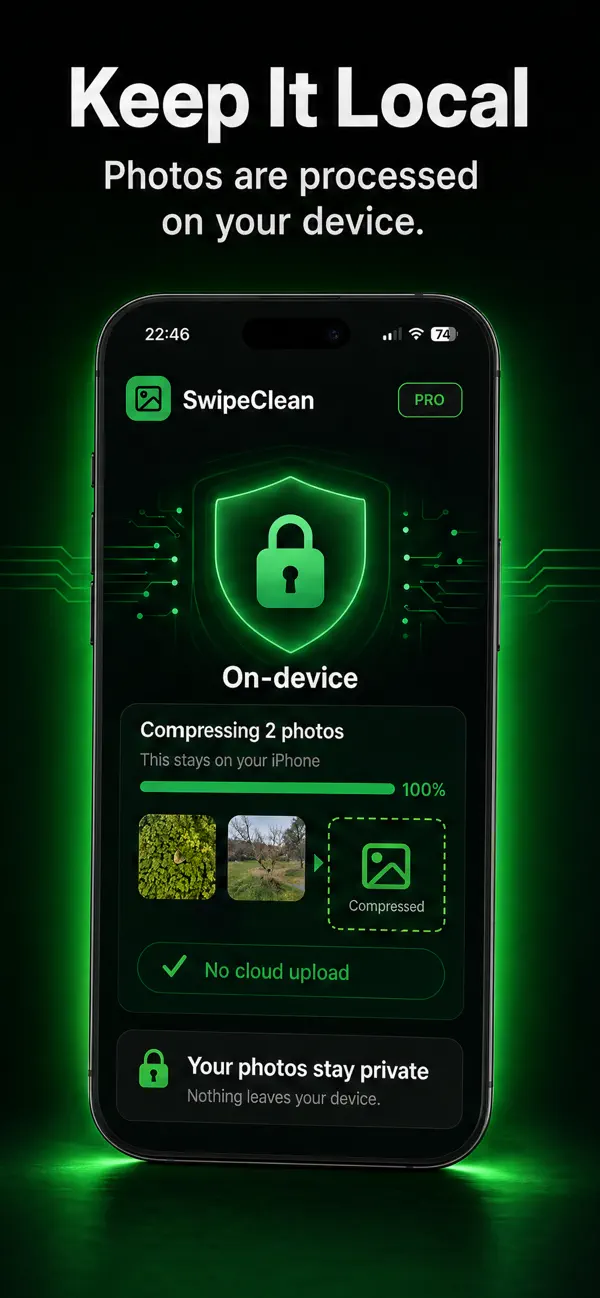
- Compress on-device. No upload, no account — processing happens locally, and you choose whether to keep the originals.
When you should NOT compress a photo
- Planned large prints: keep the original of anything headed for canvas or A3+.
- Heavy future editing: crops and shadow-lifting eat headroom; edit first, compress the export.
- Legal or archival documents: keep originals of anything where detail is evidence.
Everything else — the burst of 14 nearly identical brunch photos — is a compression candidate.
Related questions
How do I resize a photo for email on iPhone?
Compress it first, then attach: a sub-1-MB photo sails under every attachment limit. (Mail’s own “reduce size” option works too but gives you no control over how much quality it throws away.)
Does HEIC already compress my photos?
HEIC is a more efficient container than JPEG, but Apple still encodes at very high quality — HEIC photos are smaller than JPEGs would be, not small. There is plenty of surplus left; compression works on HEIC exactly as well.
Photos handled — what about the real storage hogs?
Videos. Minute for minute they dwarf photos, and the savings are proportionally larger — see how to compress a video on iPhone or run the whole storage cleanup sequence.