How to Fix Blurry Photos
Updated July 7, 2026 · by Oguz Yildiz
You can fix a blurry photo when the underlying detail is soft but present — focus misses, slight motion blur, low-resolution scans, and the general mush of old prints all respond well to AI sharpening. What cannot be fixed is detail that was never recorded. This guide explains which blur is recoverable, why traditional sharpening made things worse, and how to unblur photos on an iPhone with Refect.
Know your blur: which kinds are fixable
- Soft focus (very fixable). The lens focused slightly off-plane; edges are soft but information survives. AI reconstruction shines here, especially on faces.
- Mild motion blur (usually fixable). A small handshake smear can be re-resolved; the AI infers the sharp edge the smear implies.
- Low resolution (fixable by upscaling). Old scans and early-digital photos are not blurry so much as tiny — super-resolution rebuilds them at modern sizes.
- Severe blur (managed expectations). A face that is pure smear will come back plausible but partly invented. Good for display, not for identification.
Why old-school sharpening failed
Classic sharpening filters raise edge contrast — they make blur crunchier, not sharper, and amplify grain and halos along the way. Modern AI enhancement is generative instead: trained on millions of sharp/soft image pairs, it reconstructs the detail the blur is hiding. The visible difference is texture — real-looking skin, hair, and fabric instead of ringing edges. Refect’s enhancer adds a super-resolution pass that upscales up to 8× while deliberately preserving authentic film grain, so restored prints still look like photographs.
How to unblur a photo in Refect
- Import the photo — a library image or a scan of a print. For damaged prints, run restoration first so the enhancer works on clean input.
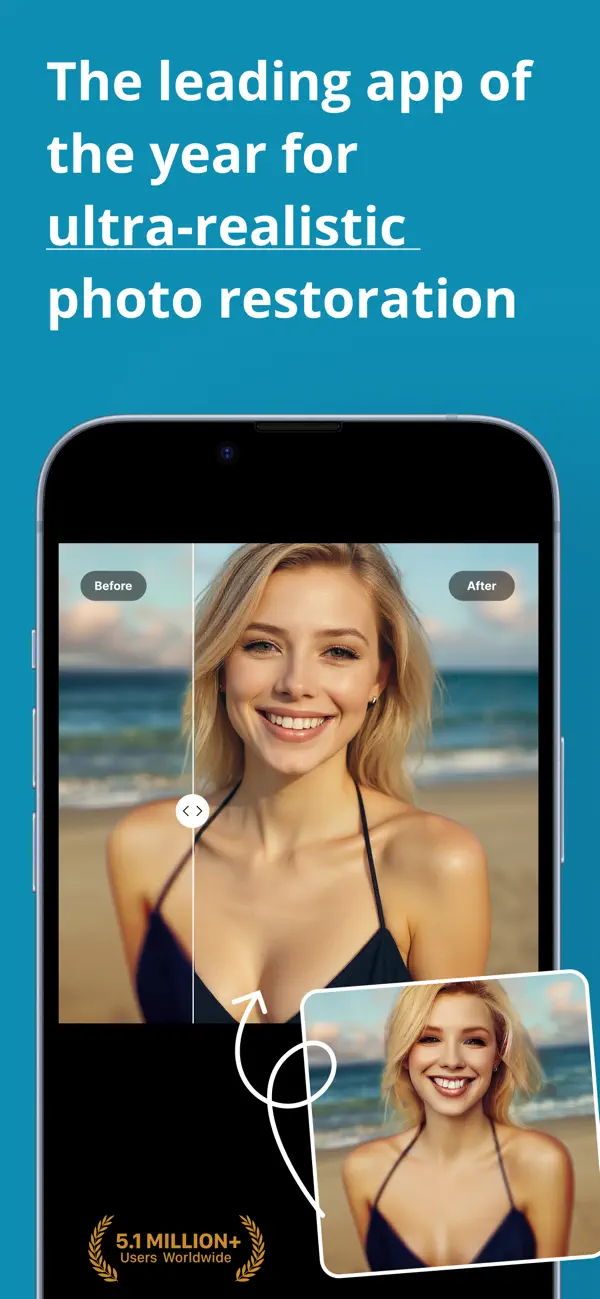
- Choose ENHANCE. The Blur-to-Sharp pass reconstructs edges and texture; faces get the face-refinement model automatically.
- Set the strength. Maximum is not always best — portraits usually look most natural one notch down, where pores and hair stay organic.
- Compare Before/After and export. Check eyes and text (the two places over-enhancement shows first), then save in full resolution.
Getting the most out of enhancement
- Start from the largest version you have. The original camera file beats the WhatsApp-compressed copy every time.
- Enhance last. Restore → colorize → enhance is the order that avoids sharpening damage artifacts into the final image.
- Print test. If the goal is a framed print, view the enhanced photo at print size before ordering — 8× upscaling makes wall-size prints from wallet-size originals genuinely possible.
Related questions
Can I fix a blurry screenshot or scanned document?
Text is the hardest case: readers notice a single wrong letter. Enhancement helps legibility of mildly soft text, but treat AI-reconstructed documents as aids, not evidence.
Why do my old phone photos look blurry now?
Screens outgrew them. A 2-megapixel photo from 2005 was fine on a 2005 screen and looks soft on a 2026 one. That is a resolution problem, and upscaling — not sharpening — is the fix.
Does unblurring work on black-and-white photos?
Yes, and it pairs naturally with colorization: sharpen the scan, then colorize the sharpened result for the full revival.