How a Receipt Splitter App Works (Scan, Assign, Settle)
Updated July 7, 2026 · by Oguz Yildiz
A receipt splitter app takes a photo of a real receipt, reads the items off it, and divides the total between people — the difference between “everyone Venmo me something” and everyone paying exactly what they ordered. This guide explains what happens between the photo and the per-person totals, what the AI can and cannot read, and how the whole flow looks in BillSplit.
What a receipt splitter app actually does
Under the hood there are three stages. First, optical recognition: the photo becomes text — line items, prices, quantities, subtotal, tax, tip lines. Second, structuring: “2 CRAFT IPA 16.00” must become two $8.00 beers that can be assigned to two different people, and the subtotal/tax/total lines must be told apart from food. Third, the split itself: items map to people, shared items divide among sharers, and tax and tip distribute in proportion to each person’s subtotal. Modern AI models made stage two — the historically flaky part — reliable enough that scanning is now faster than typing for anything longer than three lines.
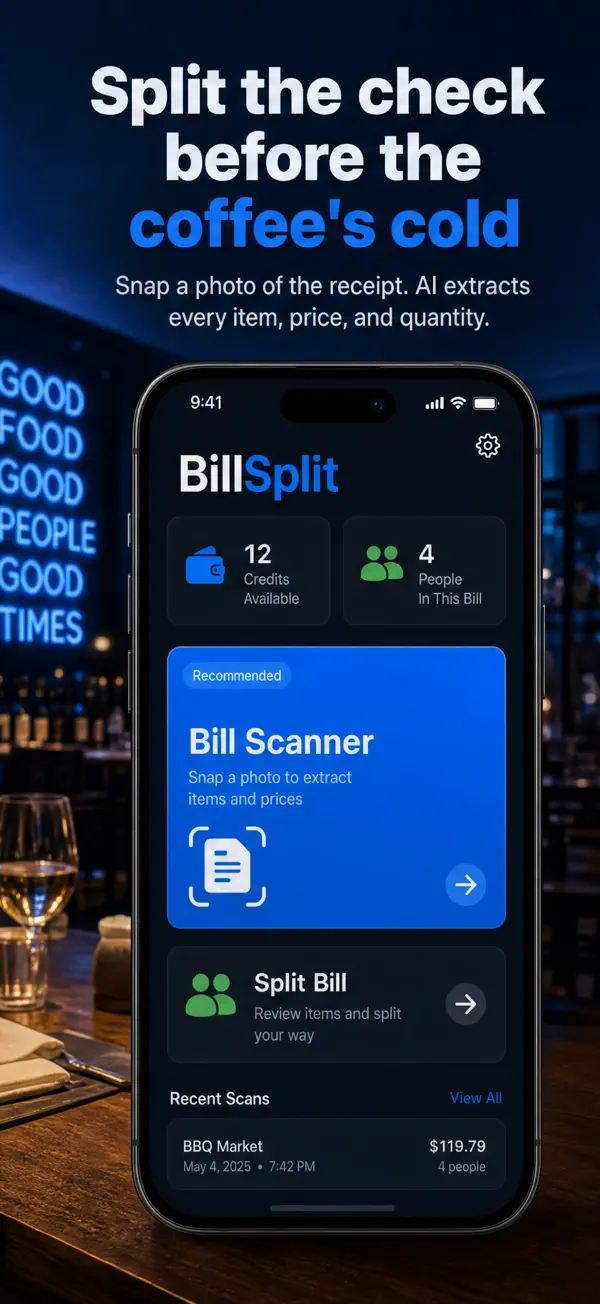
Scanning a receipt in BillSplit, step by step
- Snap the photo. Flatten the receipt, get it in frame, decent light. The AI handles thermal-paper fading and crooked shots better than you would expect — each scan uses one credit, and new users get 3 free.
- Review the parsed list. Items, prices, and quantities appear as editable rows. Scan quality is shown per receipt; anything odd — a smudged line, an abbreviation like “CHKN SND” — takes one tap to correct.
- Add the people and assign. Tap each dish onto its owner. Shared plates get an equal or percentage split among the people who shared them, quantity lines split per unit.
- Read the totals. Each person’s share appears with tax and tip already distributed proportionally. Settle however your group settles.
Getting the best scan every time
- Shoot from directly above — perspective distortion is the main cause of misread prices.
- Include the totals section. Tax and tip lines let the app verify that parsed items add up to the printed subtotal.
- Long receipt? Hold it flat. A glass or phone on the curled end beats retaking the shot three times.
- Handwritten additions (a scribbled tip) are the one thing OCR legitimately struggles with — enter those manually.
When manual entry beats scanning
Scanning wins for long, itemized restaurant checks. For a two-line bill, a food truck with no printer, or a bar tab you are reconstructing from memory, BillSplit’s manual mode is quicker — and it works fully offline, costs no credits, and feeds the exact same splitting calculator underneath.
Related questions
Can it split items with quantities, like 3 coffees?
Yes — quantity lines are expanded so each unit can go to a different person. “3 × latte $15” becomes three $5 lattes, assignable individually or split as a group.
Does the receipt photo leave my phone?
The photo is processed to extract the items and is not used for anything else; there is no account, so scans are not tied to an identity. See the app’s privacy policy for the specifics.
What does a scan cost after the free ones?
Credits come in small one-time packs via in-app purchase — no subscription. Manual entry stays free regardless, so you only ever pay for the convenience of the camera doing the typing.